
Test logs to
per-run charts and Excel
Drop a whole folder of test logs (txt) and data files (xlsx · xls · csv). It finds each test run, charts it, and exports the charts and the test conditions to one Excel file.
Sound familiar?
The parts that take the most hand work when you chart logs again and again.
Logs scattered across machines
Every machine writes its own file format and its clock drifts, so overlaying them on one chart is hard.
Cutting runs by hand
You read the logbook to find each run's start and end, then cut and paste rows.
Redrawing the same chart
Pick columns, fix the axes, and rebuild the same Excel chart for every run.
What it does
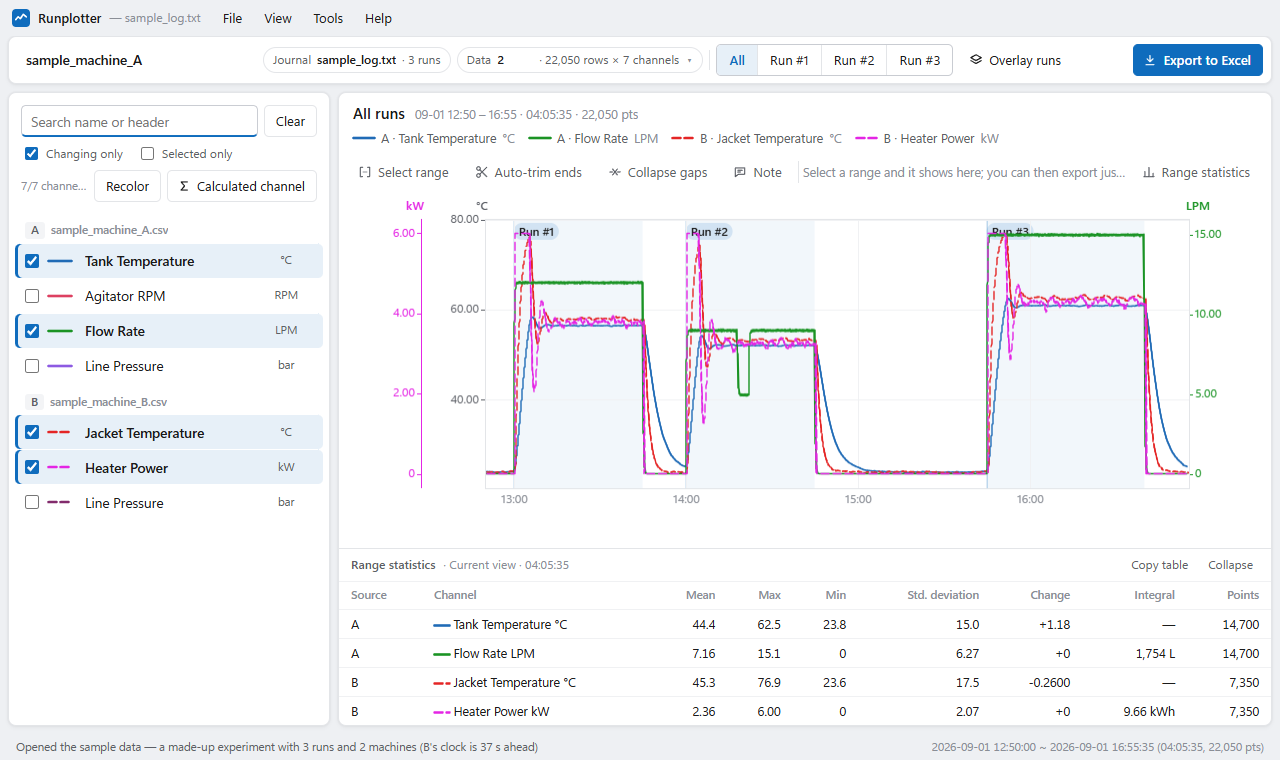
It does that work for you — logs from several machines on one screen, and one Excel file out.
Just drop the folder
xlsx · xls · csv · tsv. Encoding (UTF-8 · CP949 · UTF-16), delimiter and header row are detected. Reads a 99 MB CSV in 1.1 s.
Runs found for you
Test runs are split using the log. Long idle gaps between runs fold away, so a 20-hour record fits on one screen.
Overlay several machines
Up to 6 data files on one chart, at different logging rates. Machines whose clocks drift are lined up by automatic time alignment.
Computed channels
Build new channels with formulas like {A|press} - {B|press}. Moving average avg(x, 30s) · min · max · abs.
Range stats · run compare
Mean · max · min · std. dev. · change · integral. Overlay runs aligned to their start and compare them in one table.
One Excel file
Per-run data, charts and a test info sheet (run times · recipe text · notes) in one file. The charts stay editable in Excel. Save the chart as a PNG image, exactly as on screen, for reports.
Notes
Click the chart to add a one-line note at that moment. Notes are kept and appear as numbers on the Excel charts.
Batch summary
Scan a folder into a per-file / per-day / per-run summary sheet. Memory stays at one file's worth, however many files.
Your data stays on the PC
Files are read and drawn on this PC only. The server receives only what license checks need (Privacy).
Free and paid
Same features. The free edition shows ads and is for personal, non-work use. Work use at a company, public body or university lab needs a paid key.
| Free | Paid | |
|---|---|---|
| Features | All | All |
| Ads | A 15-second video once a day at start (skip after 5 s) · a one-line banner | None |
| Where you may use it | Hobby · personal study · a student's own coursework | Work at companies, public bodies and university labs, freelance and self-employed work |
| PCs | No limit | 2 PCs per person (e.g. work PC and laptop). Move it when you change PCs |
Plans
Per person (2 PCs). Tax is calculated at checkout for your country. Volume and education discounts are on the Plans page.
Monthly
- No ads · work use
- Billed monthly · cancel anytime
- For a short project
Yearly
- No ads · work use
- Billed yearly · cancel anytime
- $17.88 a year less than monthly
Teams · organizations
- Many seats · perpetual license
- No automatic billing
- Tell us the number of PCs
Card payments are handled by our reseller, Paddle — we never see your card details. Paddle sends the receipt and handles tax.
Buying and cancelling
Buy
- Click Subscribe and pay.
- Your key (
EXPG-XXXXX-…) arrives by e-mail. - Enter it in Help → License… in the program. Ads disappear right away.
Cancel
- Open the Manage subscription link in your receipt e-mail, or the subscription page.
- Click Cancel — one step, no harder than signing up.
- Billing stops and you keep using it until the paid period ends. Then it returns to the free edition (with ads).
Refunds: within 7 days of purchase if the key has not been entered in the program. See the refund policy.
FAQ
Do I need to install it?
No. Download one exe and run it. No admin rights needed.
Windows says “Windows protected your PC”
That notice appears because the app is not code-signed yet. Click More info → Run anyway — see the steps.
Is my log data uploaded?
No. Files are read and drawn on your PC only. The server receives only what license checks need — an ID for the PC (a one-way hash of the Windows install ID; the original value is never sent), the program version, the language, and for paid use the key and the computer name.
What if the internet drops?
Short drops are fine — it carries on when the connection returns, and the paid edition keeps working for days offline. The details are on the IT review page.
It is blocked at work
Ask IT to allow the license server address (HTTPS, port 443). Log files never leave the PC — show this page and the privacy policy for the security review.
Changing PCs?
- On the old PC choose License → Release from this PC, then enter the key on the new one.
- If the old PC cannot be started, enter the key on the new PC, pick the old PC in the list and choose Move to this PC.
- You can release or move 3 times in any 12 months by yourself; beyond that, contact us. Replacing parts (SSD, network card) does not count.
How many PCs?
One person may use it on 2 PCs (e.g. a work PC and a laptop). For several people, buy one license per person — one key covers them all, with volume discounts from 5 people.
Mac · Linux?
In preparation. Windows 10 / 11 only for now.